
|
|
| Corporate Information |
Software Products |
Bespoke Solutions |
Contact Information |
Legal Disclosure |
|
|
||||||||||||||||||||||||||||||||||||||||||||||||||||||||||||||||||||||||||||||||||||||||||||||||||||||||
Scorpion BarCode User Guide
Welcome To Scorpion BarCode! Scorpion BarCode is a complete Barcode creation utility that enables you to quickly create Barcode images for use in other applications. The software supports the following symbologies:
(Back) System Requirements Scorpion BarCode is optimised for macOS 14 Sonoma with Apple Silicon or Intel processors, and operates natively on any macOS compatible system running OS X 10.15 Catalina or later. (Back) Software Purchase & Registration The Scorpion BarCode software is distributed freely for evaluation purposes only and usage is subject to acceptance of a License Agreement. It is not a free or public domain software. You have 28 days in which to register and purchase your software if you wish to continue to retain it after your 28 day evaluation period otherwise you must delete it from your computer and all archive storage within the 28 days period. The Scorpion Research web site describes the prices and how to purchase Scorpion BarCode. Alternatively, just send us an eMail for the latest information! (Back) Technical Support Technical Support is free to all registered users via eMail. If you require Technical Support please send an eMail message to Support@ScorpionResearch.com specifying your exact requirements. We endeavour to respond to support requests within one business day. Please note that we do not provide Telephone support free of charge. (Back) Product Updates Please view the Scorpion Research web site which provides the latest information, product updates, FAQ sheets and related news regarding the Scorpion BarCode software. (Back) Contact Information For Technical Support, please contact Scorpion Research Ltd or your usual support provider. Product updates and general information including the latest FAQ help sheets can be found on our website.
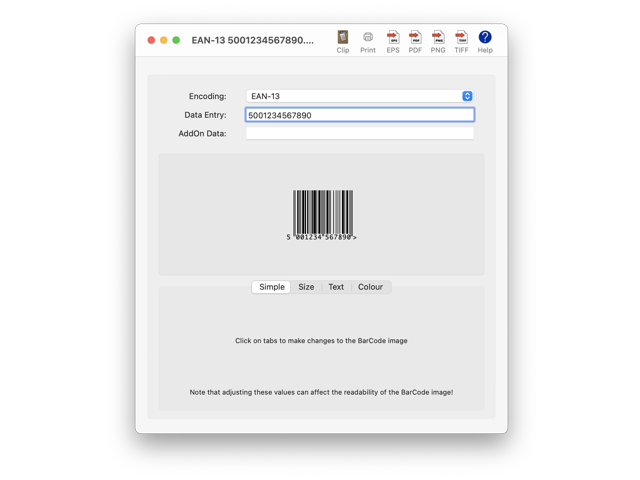
The preferred method of contacting Scorpion Research Ltd is by eMail and enquiries or support requests will normally be replied within one business day, if not sooner. (Back) License Agreement Notice The information contained in this document or the product referred therein is subject to change without notice and does not represent a commitment on the part of Scorpion Research Ltd. The software is furnished under a License Agreement and may only be used and copied in accordance with the terms of the License Agreement. This is a legal License Agreement entered into between you the end user Licensee, and us as Scorpion Research Ltd a body corporate registered in England. By the creation of any data files by the software, or by being party to the creation thereof, you are agreeing to be bound by the terms of this License Agreement. If you do not agree to the terms of this License Agreement, promptly return the software and any accompanying materials received in any form or kind, to the source of your supply for a refund of the price paid. Grant of License Scorpion Research Ltd grants you the right to use one copy of the software on a single computer. The software is deemed to be in use when it is loaded into a temporary storage medium including the RAM or installed into permanent memory including the hard disks, CD-ROMs, or other such storage devices of that computer. Copyright The user's guide and the software described therein are copyright materials owned by Scorpion Research Ltd with all rights reserved world-wide. Under the copyright laws and international treaties for the enforcement thereof, the copyrighted materials including this user's guide and the software described therein may not be copied in whole or in part, translated into another language or format, stored in a retrieval system, or transmitted, in any form or by any means, electronic, mechanical, optical, photocopying, recording, or otherwise without the prior written consent of Scorpion Research Ltd, except to make a backup copy of the software for the sole use of the Licensee. The same proprietary and copyright notices must be affixed to any permitted copies as were affixed to the original. This exception does not allow copies to be made for other parties, whether or not sold. You may use the software on any computer owned by you, if you make sure that there is no possibility of it being used on more than one computer at the same time. Multiple use licenses are available. Other Restrictions In addition to any restrictions already stated or implied, you may not rent or lease the software, but you may transfer your rights under this License Agreement on a permanent basis provided you transfer all copies of the software and all written materials, and the recipient agrees to the terms of this License Agreement. You may not reverse engineer, decompile, disassemble, or modify the software in any form or kind. Any transfer must include the most recent update and all prior versions of the software and its accompanying materials. Limited Warranty Scorpion Research Ltd warrants that the software will perform substantially in accordance with the accompanying User's Guide for a period of 90 (ninety) days from the date of receipt. Any implied warranties on the software are limited to 90 (ninety) days or the shortest period permitted by applicable law, whichever is greater. Licensee Remedies The entire liability of Scorpion Research Ltd and your exclusive remedy shall be, at the discretion of Scorpion Research Ltd, either (a) return of the License Fee paid or (b) repair or replacement of the software that does not meet the Limited Warranty. No Other Warranties To the maximum extent permitted by applicable law, Scorpion Research Ltd disclaims all other warranties, either express or implied, including but not limited to implied warranties of merchantability and fitness for a particular purpose with respect to the software. Scorpion Research Ltd does not warrant, guarantee or make any representations regarding the use or the results of the use of the software in terms of its correctness, accuracy, reliability, currentness or otherwise. The entire risk as to the results and performance of the software is assumed by you. The Limited Warranty expressed herein does not affect your statutory rights. No Liability For Consequential Losses To the maximum extent permitted by applicable law, the Scorpion Research Ltd shall not be liable for any other damages whatsoever (including, without limitation, damages for loss of business profits, business interruption, loss of business information, or other pecuniary loss) arising out of the use or the inability to use the software, even if Scorpion Research Ltd has been advised of the possibility of such damages. In any case, the entire liability of Scorpion Research Ltd for actual damages from any cause whatsoever, and regardless of the form of the action whether in contract, tort including negligence, product liability, or otherwise, shall be limited to the amount actually paid by you for the software. Licenses and Trademarks References to various known trademarks or registered trademarks of Apple Inc., including the terms Apple, MacOS, Macintosh, etc, and those of Adobe Systems Inc, in respect of PostScript, have been made in the software and/or the accompanying materials. Such references do not imply any endorsement of, or other affiliations with, Scorpion Research Ltd or vice versa. The reference to the known trademarks or registered trademarks names is in an editorial fashion only, and to the benefit of the trademark holder and owner, with no intention of infringement of the trademark. Where known trademarks or registered trademarks are referred to, every effort has been made to adhere to the holder and owner's preferred style of spelling and capitalisation. Jurisdiction The Laws of England shall apply in all matters relating to the Agreement. (Back) Creating Your First Barcode The Scorpion BarCode software is extremely simple to use. The following steps will guide you through the creation of a standard Barcode:
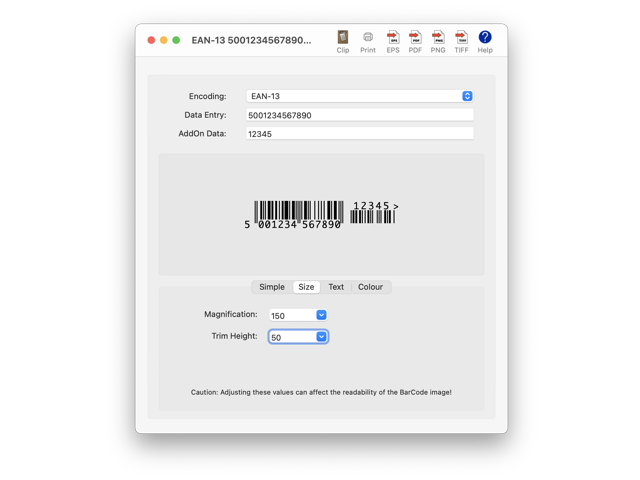
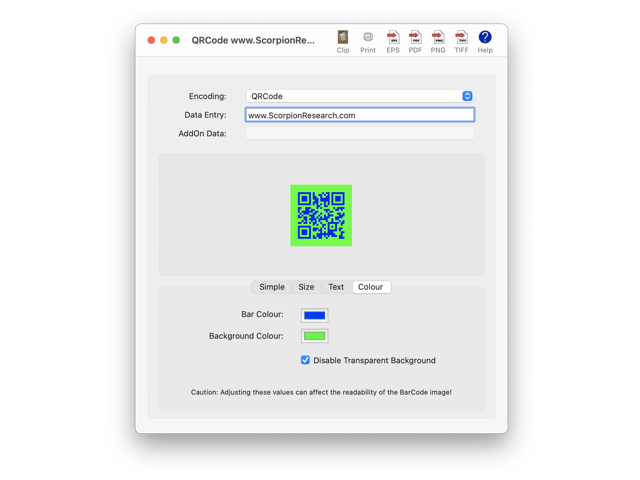
(Back) Features Reference The Toolbar that appears on each Scorpion BarCode window allows quick access to commonly used features. Items that appear under the Menu bar can also be used to access commonly used features. The advanced editing tabs provide access to editing options for the final Barcode image. Care should be exercised when selecting the advanced editing features as excessive adjustments away from the original specifications can make a Barcode unreadable. Features available via the Toolbars, Menu items, and advanced editing tabs include: Clip Saves a copy of the Barcode image on the clipboard ready for pasting into other application programs. Prints the Barcode image in camera-ready artwork format. EPS Saves the Barcode image as a resolution-independent vector EPS file that can be imported or edited in other application programs. This is the preferred format for the professional print industry and expected by professional DTP layout programs. Saves the Barcode image as a resolution-independent vector PDF file that can be imported or edited in other application programs. This is the preferred format for general macOS purposes such as placing the image in other application programs. PNG Saves the Barcode image as a bitmap image PNG file that can be imported into other application programs. Please note that bitmap images do not scale effectively and should not be used for high-resolution printing purposes. Transparency and alpha channel is preserved. TIFF Saves the Barcode image as a bitmap image TIFF file that can be imported into other application programs. Please note that bitmap images do not scale effectively and should not be used for high-resolution printing purposes. Transparency and alpha channel is preserved. Help Activates the Apple Help window which displays the contents of this User Guide for your ease of reference. Magnification Provides percentage scaling of the Barcode image. The default position is 100%. Trim Level Provides the option to trim the height of the Barcode image without affecting the widths of the Barcode graphic elements. The default position is 0. Display Text Override Provides the ability to adjust the text shown within the Barcode image. Not applicable in all Barcode symbologies as most specifications are clear that the text must conform to the specifications. However, in some case, some minor manual adjustment is desirable such as placing spaces between some of the characters or brackets around some of the characters to help make the text contents more readily human-readable. Disable Font Smoothing Font smoothing creates a softer edge to the font outline to make the results more visually appealing. Modern printing techniques and display screens have the ability to smoothen fonts directly at the rendering stage and there is no reason to disable the Font Smoothing. The Disable Font Smoothing option is therefore normally kept Off. However, when using older print plate devices which require clear edges, the Font Smoothing feature can be disabled by ticking the box to the On position. Disable Anti-Aliasing Anti-Aliasing creates a softer edge to the Barcode graphic elements outline to make the results more visually appealing. Modern printing techniques and display screens have the ability to anti-alias the graphical objects directly at the rendering stage and there is no reason to disable the Anti-Aliasing. The Disable Anti-Aliasing option is therefore normally kept Off. However, when using older print plate devices which require clear edges, the Anti-Aliasing feature can be disabled by ticking the box to the On position. Bar Colour The standard colour panel provides the option to select any colour available to paint the Barcode graphic elements in the chosen colour. The default specifications for most Barcode symbologies usually calls for pure black but the option to select a colour remains popular to match inks in use on the final output. Background Colour The standard colour panel provides the option to select any colour available to paint the background of the Barcode image in the chosen colour. The default specifications for most Barcode symbologies usually calls for pure white but the option to select a colour remains popular to match inks in use on the final output. The default setting is white but with transparency not disabled so that the background is usually clear. Disable Transparent Background The background colour is selectable but not always desirable. A transparent background allows the Barcode image to adopt the background of the layout where it is placed. In some cases, the background needs to be specified, such as when overlaying on a complex image layout. The default position of maintaining a transparent background can be disabled by ticking the box to the On position where the selected Background Colour will then become the background colour of the BarCode image. Font Name Most Barcode symbologies prefer a mono-proportional font for the human readable text shown as part of the Barcode image. Older specifications called for an Optical Character Recognisable (OCR) font for machine reading of the text though this is now generally redundant in the modern era. The default mono-proportional font historically adopted by macOS computers was Monaco and this remains the default choice in Scorpion BarCode software. Font Size When selecting a Font, care should be taken to ensure that the text rendered is human-readable and does not get clipped by the edges of the Barcode image or superimposed on the Barcode graphic elements. The Font size can be adjusted from the default size of 10 otherwise intended for the default Monaco mono-proportional font. (Back) Getting Help The Help menu is used to invoke the various Apple Help features and for general assistance during use of the Scorpion BarCode software. The contents may vary slightly depending on the macOS version installed on your computer. Scorpion BarCode Help Activates the Apple Help window which displays the contents of this User Guide for your ease of reference. Scorpion BarCode User Guide Opens the PDF version of this User Guide for your ease of reference. Scorpion Research Home Page Takes you to the Scorpion Research website in order to obtain the latest information or purchase a software license. Scorpion Research Support eMail Opens your usual eMail software and creates a new eMail addressed to Scorpion Research Tech Support ready for you to raise your query. Register... Opens the Registration window for you to enter your Serial Number and Unlock Code that you would have received from Scorpion Research Tech Support at the time of purchasing the software license. Entering this information converts the Scorpion BarCode software into a Full version from a Demo version. (Back) Encoding Selection The Encoding that is selected will define the particular type of Barcode graphic that you wish to create using the Scorpion BarCode software. The following is a summary of the Barcode symbologies that are available. Further help on each Barcode symbology is available in the Reference section. EAN-13 The EAN-13 type Barcode symbology consists of the standard EAN 13 digit Barcode with support for a further optional 2 or 5 Add-On digits where required. The EAN-13 type Barcode symbology can be used within the retail or POS applications and is not recommended for use with Traded units. EAN-8 The EAN-8 type Barcode symbology consists of the shortened EAN 8 digit Barcode and is used in special circumstances where the EAN-13 Barcode cannot be used. The EAN-8 type Barcode symbology is intended for use within specific retail or POS applications and should not be used for Traded units. EAN-128 The EAN-128 type Barcode symbology provides greater flexibility than the EAN-13 Barcode through supporting a larger number of digits as well as alpha-numeric and special characters. The uses for the EAN-128 Barcode are widespread throughout different industries and the use of special Application Identifiers offers further possibilities for standardised automation. EAN-14 The EAN-14 type Barcode symbology is used for identifying traded goods throughout the supply chain. The DUN-14 (Distribution Unit Number) is often implemented using EAN-14 Barcodes. EAN-18 The EAN-18 type Barcode symbology is also known as SSCC-18 (Serial Shipping Container Code and is used throughout the supply chain for item tracing and internal controls. EAN-99 The EAN-99 type Barcode symbology is a variant of the EAN-13 type Barcode commencing with 99 and used primarily for in-store coupons intended for distribution within the same store. EAN-Coupon The EAN-Coupon type Barcode is a variant of the EAN-13 Barcode representing the value of a coupon for use in Point of Sale environments. EAN-Velocity The EAN-Velocity type Barcode is a variant of the EAN-8 Barcode representing the value of a six digit number usually only for internal use. UPC-A The UPC-A type Barcode symbology consists of the standard UPC 12 digit Barcode with support for a further optional 2 or 5 Add-On digits where required. The UPC-A type Barcode symbology can be used within the retail or POS applications and is not recommended for use with Traded units. UPC-E The UPC-E type Barcode symbology consists of the shortened UPC 6 digit Barcode and is used in special circumstances where the UPC-A Barcode cannot be used. The UPC-E type Barcode symbology is intended for use within specific retail or POS applications and should not be used for Traded units. Code-128 The Code-128 type Barcode symbology provides greater flexibility than the Code-39 Barcode through supporting a larger number of digits as well as alpha-numeric and special characters. The uses for the Code-128 Barcode are widespread throughout different industries. Code-93 The Code-93 type Barcode symbology provides alpha-numeric Barcodes where text strings are to be represented in Barcode format. The Code-93 symbology was developed to respond to certain ambiguities within the Code-39 symbology when used in full ASCII mode. Code-39 The Code-39 type Barcode symbology provides alpha-numeric Barcodes where text strings are to be represented in Barcode format. Code-32 The Code-32 type Barcode symbology provides a Barcode intended for use within the Italian pharmaceutical industry. Code-25 The Code-25 type Barcode symbology is a low density numeric Barcode made popular by the warehouse and item sorting industry including airlines. It has now been superseded in practical applications by other more modern Barcode symbologies. UPC-Coupon The UPC-Coupon type Barcode is a hybrid combination of a UPC-A Barcode on the left to identify the manufacturer and product family of the coupon plus an EAN-128 Barcode on the right representing the purpose of the coupon in the Point of Sale environment. Codabar The Codabar type Barcode symbology provides a numeric Barcode with certain additional characters which are often used with numbers that are to be represented in Barcode format. ISSN The ISSN type Barcode is a variant of the EAN-13 Barcode representing the International Standard Serial Number for use with serial publications. ISBN The ISBN type Barcode is a variant of the EAN-13 Barcode representing the International Standard Book Number for use with non-serial publications. Both traditional 10 and modern 13 digit formats are supported. ISMN The ISMN type Barcode is a variant of the EAN-13 Barcode representing the International Standard Music Number intended to identify music in printed format. PostNet The PostNet type Barcode consists of the United States Postal Service Bar Coding symbology for marking bulk postal items to enable automated sorting. All 5 digit, 9 digit and 11 digit Zip Code formats are supported. RM4SCC The Royal Mail Four State Customer Code (RM4SCC) type Barcode consists of the English Royal Mail Bar Coding symbology for marking bulk postal items to enable automated sorting. Pharmacode The Pharmacode type Barcode symbology provides a numeric Barcode originally intended for use primarily within the pharmaceutical industry. CIP The CIP type Barcode symbology provides a numeric Barcode originally intended for use primarily within the French pharmaceutical industry. PZN The PZN type Barcode symbology provides a numeric Barcode originally intended for use primarily within the German pharmaceutical industry. MSI The MSI type Barcode symbology provides a numeric Bar often known as the Modified Plessey symbology. ITF-SCC The ITF (Interleaved Two of Five Shipping Container Code) type Barcode symbology consists of the standard 14 digit Barcode. The ITF-SCC Barcode symbology is intended for use with Traded Units and is not recommended for retail or POS applications. ITF-14 The ITF-14 (Interleaved Two of Five 14 digits) type Barcode symbology consists of 14 digits and is used for marking shipping palettes and cartons. It is sometimes known as the Shipping Container Symbol. Interleaved-25 The Interleaved-25 type Barcode symbology is a numeric Barcode symbology used primarily in the warehouse and item sorting industry. QRCode The QRCode type Barcode 2D symbology is a popular Barcode symbology used frequently to connect printed materials to an online location via mobile devices. MicroQR The MicroQR type 2D Barcode symbology is a popular Barcode symbology used frequently to connect printed materials to an online location via mobile devices. PDF417 The PDF417 type Barcode symbology is an alpha-numeric 2D Barcode symbology used primarily in the transport, identity, warehouse and item sorting industry. Identcode The Identcode type Barcode symbology is a numeric Barcode symbology used primarily in the transport, identity, warehouse and item sorting industry. DataMatrix The DataMatrix type Barcode symbology is a 2D Barcode symbology is used in a variety of applications with the added advantage that it supports more than the standard range of alphanumeric characters. USPS4CB The USPS4CB type Barcode symbology is a numeric Barcode symbology developed by the United States Postal Service for marking bulk postal items to enable automated sorting. FIM The FIM type Barcode consists of the United States Postal Service Bar Coding symbology for marking bulk postal items to enable automated sorting. Databar-Omnidirectional The Databar-Omnidirectional Barcodes, formerly known as Reduced Space Symbology (RSS), are used in a variety of applications including point of sale, inventory tracking, healthcare, and distribution. Databar-Truncated The Databar-Truncated Barcodes, formerly known as Reduced Space Symbology (RSS), are used in a variety of applications including inventory tracking, healthcare and distribution. Databar-Stacked The Databar-Stacked Barcodes, formerly known as Reduced Space Symbology (RSS), are used in a variety of applications including point of sale, inventory tracking, healthcare, and distribution. Databar-StackedOmnidirectional The Databar-StackedOmnidirectional Barcodes, formerly known as Reduced Space Symbology (RSS), are used in a variety of applications including point of sale, inventory tracking, healthcare, and distribution. Databar-Limited The Databar-Limited Barcodes, formerly known as Reduced Space Symbology (RSS), are used in a variety of applications including inventory tracking, healthcare and distribution. Databar-Expanded The Databar-Expanded Barcodes, formerly known as Reduced Space Symbology (RSS), are used in a variety of applications including point of sale, inventory tracking, healthcare, and distribution. Telepen The Telepen type Barcode symbology is the only symbology that has the ability to encode the full ASCII character set without the need for special shift characters. (Back) EAN-13 Reference The EAN-13 type Barcode symbology consists of the standard EAN 13 digit Barcode with support for a further optional 2 or 5 Add-On digits where required. The EAN-13 type Barcode symbology can be used within the retail or POS applications and is not recommended for use with Traded units. To create the Barcode image, enter the data into the Barcode Data Entry box. The Barcode image is updated automatically during entry. The usual size of this Barcode symbology consists of 13 numeric digits. Although the text appearing below the Barcode image reflects the data that has been entered, the actual image is based on data after it has been validated. For certain special applications, this symbology accepts further 2 or 5 digit add-on codes which are entered in the Barcode AddOn Data box. Support for AIM Symbology Identifiers is offered when text files are dragged onto the Scorpion BarCode application icon or opened via the File menu. The decoder relies on the following string of characters prefixed to the data message:
For further information, please contact GS1 International (http://www.gs1.org), Blue Tower, Avenue Louise 326, B-1050 Brussels, Belgium, Tel +32-2-788-78-00, Fax +32-2-788-78-99. A local office may also be available in other countries. For further information on AIM (Automatic Identification Manufacturers Inc) please contact Automatic Identification Manufacturers Inc (http://www.aimglobal.org), 125 Warrendale-Bayne Road, Warrendale, Pennsylvania, PA 15086, United States, Tel +1-724-934-4470, Fax +1-724-934-4495. (Back) EAN-8 Reference The EAN-8 type Barcode symbology consists of the shortened EAN 8 digit Barcode and is used in special circumstances where the EAN-13 Barcode cannot be used. The EAN-8 type Barcode symbology is intended for use within specific retail or POS applications and should not be used for Traded units. To create the Barcode image, enter the data into the Barcode Data Entry box. The Barcode image is updated automatically during entry. The usual size of this Barcode symbology consists of 8 numeric digits. Although the text appearing below the Barcode image reflects the data that has been entered, the actual image is based on data after it has been validated. Support for AIM Symbology Identifiers is offered when text files are dragged onto the Scorpion BarCode application icon or opened via the File menu. The decoder relies on the following string of characters prefixed to the data message:
For further information, please contact GS1 International (http://www.gs1.org), Blue Tower, Avenue Louise 326, B-1050 Brussels, Belgium, Tel +32-2-788-78-00, Fax +32-2-788-78-99. A local office may also be available in other countries. For further information on AIM (Automatic Identification Manufacturers Inc) please contact Automatic Identification Manufacturers Inc (http://www.aimglobal.org), 125 Warrendale-Bayne Road, Warrendale, Pennsylvania, PA 15086, United States, Tel +1-724-934-4470, Fax +1-724-934-4495. (Back) EAN-128 Reference The EAN-128 type Barcode symbology provides greater flexibility than the EAN-13 Barcode through supporting a larger number of digits as well as alpha-numeric and special characters. The uses for the EAN-128 Barcode are widespread throughout different industries and the use of special Application Identifiers offers further possibilities for standardised automation. The Scorpion BarCode software encodes EAN-128 Barcodes using Codeset B encoding which offers alphanumeric text to be encoded. In the special case where all of the text consists of numeric data only, the Codeset C is automatically used which results in a smaller Barcode image. Similarly, where only numeric and uppercase alphabetic characters are required, Codeset A is automatically used. To create the Barcode image, enter the data into the Barcode Data Entry box. The Barcode image is updated automatically during entry. The usual size of this Barcode symbology depends on the number of numeric digits that are included. It is not recommended to have greater than 25 digits in one Barcode graphic. Although the text appearing below the Barcode image reflects the data that has been entered, the actual image is based on data after it has been validated. Support for AIM Symbology Identifiers is offered when text files are dragged onto the Scorpion BarCode application icon or opened via the File menu. The decoder relies on the following string of characters prefixed to the data message:
For further information, please contact GS1 International (http://www.gs1.org), Blue Tower, Avenue Louise 326, B-1050 Brussels, Belgium, Tel +32-2-788-78-00, Fax +32-2-788-78-99. A local office may also be available in other countries. For further information on AIM (Automatic Identification Manufacturers Inc) please contact Automatic Identification Manufacturers Inc (http://www.aimglobal.org), 125 Warrendale-Bayne Road, Warrendale, Pennsylvania, PA 15086, United States, Tel +1-724-934-4470, Fax +1-724-934-4495. (Back) EAN-14 Reference The EAN-14 type Barcode symbology is used for identifying traded goods throughout the supply chain. The DUN-14 (Distribution Unit Number) is often implemented using EAN-14 Barcodes. To create the Barcode image, enter the data into the Barcode Data Entry box. The Barcode image is updated automatically during entry. The usual size of this Barcode symbology consists of 14 numeric digits. Although the text appearing below the Barcode image reflects the data that has been entered, the actual image is based on data after it has been validated. For further information, please contact GS1 International (http://www.gs1.org), Blue Tower, Avenue Louise 326, B-1050 Brussels, Belgium, Tel +32-2-788-78-00, Fax +32-2-788-78-99. A local office may also be available in other countries. (Back) EAN-18 Reference The EAN-18 type Barcode symbology is also known as SSCC-18 (Serial Shipping Container Code and is used throughout the supply chain for item tracing and internal controls. To create the Barcode image, enter the data into the Barcode Data Entry box. The Barcode image is updated automatically during entry. The usual size of this Barcode symbology consists of 18 numeric digits. Although the text appearing below the Barcode image reflects the data that has been entered, the actual image is based on data after it has been validated. For further information, please contact GS1 International (http://www.gs1.org), Blue Tower, Avenue Louise 326, B-1050 Brussels, Belgium, Tel +32-2-788-78-00, Fax +32-2-788-78-99. A local office may also be available in other countries. (Back) EAN-99 Reference The EAN-99 type Barcode symbology is a variant of the EAN-13 type Barcode commencing with 99 and used primarily for in-store coupons intended for distribution within the same store. To create the Barcode image, enter the data into the Barcode Data Entry box. The Barcode image is updated automatically during entry. The usual size of this Barcode symbology consists of 13 numeric digits, however, only 10 digits are required since the software automatically embeds the 99 before the data and then appends the single checksum character. Although the text appearing below the Barcode image reflects the data that has been entered, the actual image is based on data after it has been validated. For further information, please contact GS1 International (http://www.gs1.org), Blue Tower, Avenue Louise 326, B-1050 Brussels, Belgium, Tel +32-2-788-78-00, Fax +32-2-788-78-99. A local office may also be available in other countries. (Back) EAN-Coupon Reference The EAN-Coupon type Barcode is a variant of the EAN-13 Barcode representing the value of a coupon for use in Point of Sale environments. To create the Barcode image, enter the data into the Barcode Data Entry box. The Barcode image is updated automatically during entry. The usual size of this Barcode symbology consists of 13 numeric digits, however the first two digits of 98 are automatically prefixed and the final checksum digit is automatically calculated and added to the data. Although the text appearing below the Barcode image reflects the data that has been entered, the actual image is based on data after it has been validated. For information on EuroCoupons please contact GS1 Belgium & Luxembourg (http://gs1belu.org), Koningsstraat 29 Rue Royale, BE-1000 Brussels, Belgium, Tel +32-2-229-18-80, Fax +32-2-217-43-47. For further information, please contact GS1 International (http://www.gs1.org), Blue Tower, Avenue Louise 326, B-1050 Brussels, Belgium, Tel +32-2-788-78-00, Fax +32-2-788-78-99. A local office may also be available in other countries. (Back) EAN-Velocity Reference The EAN-Velocity type Barcode is a variant of the EAN-8 Barcode representing the value of a six digit number usually only for internal use. EAN-Velocity Barcodes are used where EAN-8 or EAN-13 Barcodes are not available for items used internally within an organisation. To create the Barcode image, enter the data into the Barcode Data Entry box. The Barcode image is updated automatically during entry. The usual size of this Barcode symbology consists of 6 numeric digits. (Back) UPC-A Reference The UPC-A type Barcode symbology consists of the standard UPC 12 digit Barcode with support for a further optional 2 or 5 Add-On digits where required. The UPC-A type Barcode symbology can be used within the retail or POS applications and is not recommended for use with Traded units. To create the Barcode image, enter the data into the Barcode Data Entry box. The Barcode image is updated automatically during entry. The usual size of this Barcode symbology consists of 12 numeric digits. Although the text appearing below the Barcode image reflects the data that has been entered, the actual image is based on data after it has been validated. For certain special applications, this symbology accepts further 2 or 5 digit add-on codes which are entered in the Barcode AddOn Data box. For further information on UPC (Universal Product Codes) please contact Uniform Code Council Inc (http://www.uc-council.org), Princeton Pike Corporate Centre, 1009 Lenox Drive Suite 202, Lawrenceville, New Jersey, NJ 08648, United States, Tel +1-609-620-0200, Fax +1-609-620-1200. (Back) UPC-E Reference The UPC-E type Barcode symbology consists of the shortened UPC 6 digit Barcode and is used in special circumstances where the UPC-A Barcode cannot be used. The UPC-E type Barcode symbology is intended for use within specific retail or POS applications and should not be used for Traded units. To create the Barcode image, enter the data into the Barcode Data Entry box. The Barcode image is updated automatically during entry. The usual size of this Barcode symbology consists of 6 numeric digits. Although the text appearing below the Barcode image reflects the data that has been entered, the actual image is based on data after it has been validated. For further information on UPC (Universal Product Codes) please contact Uniform Code Council Inc (http://www.uc-council.org), Princeton Pike Corporate Centre, 1009 Lenox Drive Suite 202, Lawrenceville, New Jersey, NJ 08648, United States, Tel +1-609-620-0200, Fax +1-609-620-1200. (Back) Code-128 Reference The Code-128 type Barcode symbology provides greater flexibility than the Code-39 Barcode through supporting a larger number of digits as well as alpha-numeric and special characters. The uses for the Code-128 Barcode are widespread throughout different industries. The Scorpion BarCode software encodes Code-128 Barcodes using Codeset B encoding which offers alphanumeric text to be encoded. In the special case where all of the text consists of numeric data only, the Codeset C is automatically used which results in a smaller Barcode image. Similarly, where only numeric and uppercase alphabetic characters are required, Codeset A is automatically used. To create the Barcode image, enter the data into the Barcode Data Entry box. The Barcode image is updated automatically during entry. The usual size of this Barcode symbology depends on the number of numeric digits that are included. It is not recommended to have greater than 25 digits in one Barcode graphic. Although the text appearing below the Barcode image reflects the data that has been entered, the actual image is based on data after it has been validated. Support for AIM Symbology Identifiers is offered when text files are dragged onto the Scorpion BarCode application icon or opened via the File menu. The decoder relies on the following string of characters prefixed to the data message:
For further information on UCC (Uniform Code Council) please contact Uniform Code Council Inc (http://www.uc-council.org), Princeton Pike Corporate Centre, 1009 Lenox Drive Suite 202, Lawrenceville, New Jersey, NJ 08648, United States, Tel +1-609-620-0200, Fax +1-609-620-1200. For further information on AIM (Automatic Identification Manufacturers Inc) please contact Automatic Identification Manufacturers Inc (http://www.aimglobal.org), 125 Warrendale-Bayne Road, Warrendale, Pennsylvania, PA 15086, United States, Tel +1-724-934-4470, Fax +1-724-934-4495. (Back) Code-93 Reference The Code-93 type Barcode symbology provides alpha-numeric Barcodes where text strings are to be represented in Barcode format. The Code-93 symbology was developed to respond to certain ambiguities within the Code-39 symbology when used in full ASCII mode. To create the Barcode image, enter the data into the Barcode Data Entry box. The Barcode image is updated automatically during entry. The usual size of this Barcode symbology depends on the number of alphabetical and numeric digits that are included. It is not recommended to have greater than 25 digits in one Barcode graphic. Although the text appearing below the Barcode image reflects the data that has been entered, the actual image is based on data after it has been validated. Support for AIM Symbology Identifiers is offered when text files are dragged onto the Scorpion BarCode application icon or opened via the File menu. The decoder relies on the following string of characters prefixed to the data message:
For further information on UCC (Uniform Code Council) please contact Uniform Code Council Inc (http://www.uc-council.org), Princeton Pike Corporate Centre, 1009 Lenox Drive Suite 202, Lawrenceville, New Jersey, NJ 08648, United States, Tel +1-609-620-0200, Fax +1-609-620-1200. For further information on AIM (Automatic Identification Manufacturers Inc) please contact Automatic Identification Manufacturers Inc (http://www.aimglobal.org), 125 Warrendale-Bayne Road, Warrendale, Pennsylvania, PA 15086, United States, Tel +1-724-934-4470, Fax +1-724-934-4495. (Back) Code-39 Reference The Code-39 type Barcode symbology provides alpha-numeric Barcodes where text strings are to be represented in Barcode format. To create the Barcode image, enter the data into the Barcode Data Entry box. The Barcode image is updated automatically during entry. The usual size of this Barcode symbology depends on the number of alphabetical and numeric digits that are included. It is not recommended to have greater than 25 digits in one Barcode graphic. Although the text appearing below the Barcode image reflects the data that has been entered, the actual image is based on data after it has been validated. Support for AIM Symbology Identifiers is offered when text files are dragged onto the Scorpion BarCode application icon or opened via the File menu. The decoder relies on the following string of characters prefixed to the data message:
For further information on UCC (Uniform Code Council) please contact Uniform Code Council Inc (http://www.uc-council.org), Princeton Pike Corporate Centre, 1009 Lenox Drive Suite 202, Lawrenceville, New Jersey, NJ 08648, United States, Tel +1-609-620-0200, Fax +1-609-620-1200. For further information on AIM (Automatic Identification Manufacturers Inc) please contact Automatic Identification Manufacturers Inc (http://www.aimglobal.org), 125 Warrendale-Bayne Road, Warrendale, Pennsylvania, PA 15086, United States, Tel +1-724-934-4470, Fax +1-724-934-4495. (Back) Code-32 Reference The Code-32 type Barcode symbology provides a Barcode intended for use within the Italian pharmaceutical industry. To create the Barcode image, enter the data into the Barcode Data Entry box. The Barcode image is updated automatically during entry. The usual size of this Barcode symbology depends on the number of numeric digits that are included. For further information on the Italian Pharmacode, please contact the Italian Ministry of Health (http://www.salute.gov.it) known in Italy as the Ministero della Salute. The Code-32 Barcode is also known as Codice 32 Pharmacode, Codice Farmaceutico Italiano, Italian Pharmacode, IMH and Radix 32 Barcode. (Back) Code-25 Reference The Code-25 type Barcode symbology is a low density numeric Barcode made popular by the warehouse and item sorting industry including airlines. It has now been superseded in practical applications by other more modern Barcode symbologies. To create the Barcode image, enter the data into the Barcode Data Entry box. The Barcode image is updated automatically during entry. The usual size of this Barcode symbology depends on the number of numeric digits that are included. It is not recommended to have greater than 20 digits in one Barcode graphic. Although the text appearing below the Barcode image reflects the data that has been entered, the actual image is based on data after it has been validated. For further information on UCC (Uniform Code Council) please contact Uniform Code Council Inc (http://www.uc-council.org), Princeton Pike Corporate Centre, 1009 Lenox Drive Suite 202, Lawrenceville, New Jersey, NJ 08648, United States, Tel +1-609-620-0200, Fax +1-609-620-1200. (Back) UPC-Coupon Reference The UPC-Coupon type Barcode is a hybrid combination of a UPC-A Barcode on the left to identify the manufacturer and product family of the coupon plus an EAN-128 Barcode on the right representing the purpose of the coupon in the Point of Sale environment. To create the Barcode image, enter the data into the Barcode Data Entry box. The usual size of the left hand Barcode symbology consists of 12 numeric digits. The coupon data is entered in the right hand side Barcode AddOn Data box and the usual size of the right hand Barcode symbology depends on the number of numeric digits that are included. It is not recommended to have greater than 24 digits in the right hand graphic. The Barcode image is updated automatically during entry. Although the text appearing below the Barcode image reflects the data that has been entered, the actual image is based on data after it has been validated. For further information on UPC (Universal Product Codes) please contact Uniform Code Council Inc (http://www.uc-council.org), Princeton Pike Corporate Centre, 1009 Lenox Drive Suite 202, Lawrenceville, New Jersey, NJ 08648, United States, Tel +1-609-620-0200, Fax +1-609-620-1200. For further information, please contact GS1 International (http://www.gs1.org), Blue Tower, Avenue Louise 326, B-1050 Brussels, Belgium, Tel +32-2-788-78-00, Fax +32-2-788-78-99. A local office may also be available in other countries. (Back) Codabar Reference The Codabar type Barcode symbology provides a numeric Barcode with certain additional characters which are often used with numbers that are to be represented in Barcode format. To create the Barcode image, enter the data into the Barcode Data Entry box. The Barcode image is updated automatically during entry. The usual size of this Barcode symbology depends on the number of alphabetical and numeric digits that are included. It is not recommended to have greater than 25 digits in one Barcode graphic. Although the text appearing below the Barcode image reflects the data that has been entered, the actual image is based on data after it has been validated. Support for AIM Symbology Identifiers is offered when text files are dragged onto the Scorpion BarCode application icon or opened via the File menu. The decoder relies on the following string of characters prefixed to the data message:
For further information on UCC (Uniform Code Council) please contact Uniform Code Council Inc (http://www.uc-council.org), Princeton Pike Corporate Centre, 1009 Lenox Drive Suite 202, Lawrenceville, New Jersey, NJ 08648, United States, Tel +1-609-620-0200, Fax +1-609-620-1200. For further information on AIM (Automatic Identification Manufacturers Inc) please contact Automatic Identification Manufacturers Inc (http://www.aimglobal.org), 125 Warrendale-Bayne Road, Warrendale, Pennsylvania, PA 15086, United States, Tel +1-724-934-4470, Fax +1-724-934-4495. (Back) ISSN Reference The ISSN type Barcode is a variant of the EAN-13 Barcode representing the International Standard Serial Number for use with serial publications. To create the Barcode image, enter the data into the Barcode Data Entry box. The Barcode image is updated automatically during entry. The usual size of this Barcode symbology consists of 8 or 13 numeric digits which are coerced into a 13 digit number for compatibility with the EAN-13 symbology. Although the text appearing below the Barcode image reflects the data that has been entered, the actual image is based on data after it has been validated. A further 2 or 5 digit add-on code can be entered in the Barcode AddOn Data box and is generally used to identify the issue number of the publication. For further information on ISSN (International Standard Serial Number) please contact ISSN International Centre (http://www.issn.org), 20 Rue Bachaumont, 75002 Paris, France, Tel +33-1-44-88-22-20, Fax +33-1-40-26-32-43. For further information, please contact GS1 International (http://www.gs1.org), Blue Tower, Avenue Louise 326, B-1050 Brussels, Belgium, Tel +32-2-788-78-00, Fax +32-2-788-78-99. A local office may also be available in other countries. (Back) ISBN Reference The ISBN type Barcode is a variant of the EAN-13 Barcode representing the International Standard Book Number for use with non-serial publications. Both traditional 10 and modern 13 digit formats are supported. To create the Barcode image, enter the data into the Barcode Data Entry box. The Barcode image is updated automatically during entry. The usual size of this Barcode symbology consists of either 10 or 13 numeric digits which are coerced into a 13 digit number for compatibility with the EAN-13 symbology. Although the text appearing below the Barcode image reflects the data that has been entered, the actual image is based on data after it has been validated. A further 2 or 5 digit add-on code can be entered in the Barcode AddOn Data box and is generally used to identify the price of the publication. For further information on ISBN (International Standard Book Number) please contact the International ISBN Agency (http://www.isbn-international.org), Staatsbibliothek zu Berlin, Preussischer Kulturbesitz, Potsdamer Strasse 33, 10785 Berlin, Germany, Tel +49-30-266-2336, Fax +49-30-266-2378. For further information, please contact GS1 International (http://www.gs1.org), Blue Tower, Avenue Louise 326, B-1050 Brussels, Belgium, Tel +32-2-788-78-00, Fax +32-2-788-78-99. A local office may also be available in other countries. (Back) ISMN Reference The ISMN type Barcode is a variant of the EAN-13 Barcode representing the International Standard Music Number intended to identify music in printed format. To create the Barcode image, enter the data into the Barcode Data Entry box. The Barcode image is updated automatically during entry. The usual size of this Barcode symbology consists of 10 digits including the normal M that precedes the data and the possible X at the end. Although the text appearing below the Barcode image reflects the data that has been entered, the actual image is based on data after it has been validated. For further information on ISMN (International Standard Music Number) please contact the International ISMN Agency (http://www.ismn-international.org), Staatsbibliothek zu Berlin, Preussischer Kulturbesitz, Potsdamer Strasse 33, 10785 Berlin Germany, Tel +49-30-266-2336, Fax +49-30-266-2378. For further information, please contact GS1 International (http://www.gs1.org), Blue Tower, Avenue Louise 326, B-1050 Brussels, Belgium, Tel +32-2-788-78-00, Fax +32-2-788-78-99. A local office may also be available in other countries. (Back) PostNet Reference The PostNet type Barcode consists of the United States Postal Service Bar Coding symbology for marking bulk postal items to enable automated sorting. All 5 digit, 9 digit and 11 digit Zip Code formats are supported. To create the Barcode image, enter the data into the Barcode Data Entry box. The Barcode image is updated automatically during entry. The usual size of this Barcode symbology consists of either 5 or 9 numeric digits. Although the text appearing below the Barcode image reflects the data that has been entered, the actual image is based on data after it has been validated. For further information, please contact the United States Postal Service (http://www.usps.com) directly. (Back) RM4SCC Reference The Royal Mail Four State Customer Code (RM4SCC) type Barcode consists of the English Royal Mail Bar Coding symbology for marking bulk postal items to enable automated sorting. To create the Barcode image, enter the data into the Barcode Data Entry box. The Barcode image is updated automatically during entry. The usual size of this Barcode symbology consists of a series of 7 to 12 alphabetical and numerical digits. Although the text appearing below the Barcode image reflects the data that has been entered, the actual image is based on data after it has been validated. For further information, please contact Royal Mail (http://www.royalmail.com) directly. (Back) Pharmacode Reference The Pharmacode type Barcode symbology provides a numeric Barcode originally intended for use primarily within the pharmaceutical industry. To create the Barcode image, enter the numeric data into the Barcode Data Entry box. The Barcode image is updated automatically during entry. The usual size of this Barcode symbology depends on the number of numeric digits that are included. It is not recommended to have more than 4 numeric digits in one Pharmacode Barcode graphic. Although the text appearing below the Barcode image reflects the data that has been entered, the actual image is based on data after it has been validated. For further information, please contact The Association of the British Pharmaceutical Industry (http://www.abpi.org.uk), 7th Floor Southside, 105 Victoria Street, London, SW1E 6QT, England, Tel: +44-870-890-4333. (Back) CIP Reference The CIP type Barcode symbology provides a numeric Barcode originally intended for use primarily within the French pharmaceutical industry. To create the Barcode image, enter the data into the Barcode Data Entry box. The Barcode image is updated automatically during entry. The usual size of this Barcode symbology depends on the number of numeric digits that are included. For further information, please contact Agence Nationale De Sécurité Du Médicament Et Des Produits De Santé in France (http://ansm.sante.fr), ANSM, 143-147 Boulevard Anatole France, 93285 Saint-Denis, France, Tel: +33-1-55-87-30-00. (Back) PZN Reference The PZN type Barcode symbology provides a numeric Barcode originally intended for use primarily within the German pharmaceutical industry. To create the Barcode image, enter the data into the Barcode Data Entry box. The Barcode image is updated automatically during entry. The usual size of this Barcode symbology depends on the number of numeric digits that are included. For further information, please contact Informationsstelle für Arzneispezialitäten IFA GmbH in Germany (http://www.ifaffm.de), Hamburger Allee 26 – 28, 60486 Frankfurt am Main, Germany, Tel: +49-69-979919-0, Fax: +49-69-979919-39. The PZN Barcode is also known as Pharmazentralnummer or Pharma-Zentral-Nummer. (Back) MSI Reference The MSI type Barcode symbology provides a numeric Bar often known as the Modified Plessey symbology. To create the Barcode image, enter the numeric data into the Barcode Data Entry box. The Barcode image is updated automatically during entry. The usual size of this Barcode symbology depends on the number of numeric digits that are included. It is not recommended to have more than 20 numeric digits in one MSI Barcode graphic. Although the text appearing below the Barcode image reflects the data that has been entered, the actual image is based on data after it has been validated. For further information, please contact MSI Data Corporation (http://www.msidata.com), 10033 North Port Washington Road, Mequon, Wisconsin, WI 53092, Unites States, Tel: +1-262-241-7800. (Back) ITF-SCC Reference The ITF (Interleaved Two of Five Shipping Container Code) type Barcode symbology consists of the standard 14 digit Barcode. The ITF-SCC Barcode symbology is intended for use with Traded Units and is not recommended for retail or POS applications. To create the Barcode image, enter the data into the Barcode Data Entry box. The Barcode image is updated automatically during entry. The usual size of this Barcode symbology consists of 14 numeric digits. Although the text appearing below the Barcode image reflects the data that has been entered, the actual image is based on data after it has been validated. Support for AIM Symbology Identifiers is offered when text files are dragged onto the Scorpion BarCode application icon or opened via the File menu. The decoder relies on the following string of characters prefixed to the data message:
For further information, please contact GS1 International (http://www.gs1.org), Blue Tower, Avenue Louise 326, B-1050 Brussels, Belgium, Tel +32-2-788-78-00, Fax +32-2-788-78-99. A local office may also be available in other countries. For further information on AIM (Automatic Identification Manufacturers Inc) please contact Automatic Identification Manufacturers Inc (http://www.aimglobal.org), 125 Warrendale-Bayne Road, Warrendale, Pennsylvania, PA 15086, United States, Tel +1-724-934-4470, Fax +1-724-934-4495. (Back) ITF-14 Reference The ITF-14 (Interleaved Two of Five 14 digits) type Barcode symbology consists of 14 digits and is used for marking shipping palettes and cartons. It is sometimes known as the Shipping Container Symbol. To create the Barcode image, enter the data into the Barcode Data Entry box. The Barcode image is updated automatically during entry. The usual size of this Barcode symbology consists of 14 numeric digits. Although the text appearing below the Barcode image reflects the data that has been entered, the actual image is based on data after it has been validated. For further information, please contact GS1 International (http://www.gs1.org), Blue Tower, Avenue Louise 326, B-1050 Brussels, Belgium, Tel +32-2-788-78-00, Fax +32-2-788-78-99. A local office may also be available in other countries. (Back) Interleaved-25 Reference The Interleaved-25 type Barcode symbology is a numeric Barcode symbology used primarily in the warehouse and item sorting industry. To create the Barcode image, enter the data into the Barcode Data Entry box. The Barcode image is updated automatically during entry. The usual size of this Barcode symbology depends on the number of numeric digits that are included. It is not recommended to have greater than 30 digits in one Barcode graphic. Although the text appearing below the Barcode image reflects the data that has been entered, the actual image is based on data after it has been validated. For further information, please contact GS1 International (http://www.gs1.org), Blue Tower, Avenue Louise 326, B-1050 Brussels, Belgium, Tel +32-2-788-78-00, Fax +32-2-788-78-99. A local office may also be available in other countries. (Back) QRCode Reference The QRCode type Barcode 2D symbology is a popular Barcode symbology used frequently to connect printed materials to an online location via mobile devices. To create the Barcode image, enter the data into the Barcode Data Entry box. The Barcode image is updated automatically during entry. The usual size of this Barcode symbology depends on the number of characters that are entered. It is not recommended to have more than 250 characters in one QRCode Barcode graphic when used to encode an online address. The QRCode symbology was created by Denso Wave Inc (http://www.denso-wave.com) and has been released openly to encourage widespread usage. (Back) MicroQR Reference The MicroQR type 2D Barcode symbology is a popular Barcode symbology used frequently to connect printed materials to an online location via mobile devices. To create the Barcode image, enter the data into the Barcode Data Entry box. The Barcode image is updated automatically during entry. The usual size of this Barcode symbology depends on the number of characters that are entered. The MicroQR symbology is intended for a very small numbers of characters to be encoded where space is limited. It is not recommended to have more than 15 characters in one MicroQR Barcode graphic. The MicroQR symbology was created by Denso Wave Inc (http://www.denso-wave.com) and has been released openly to encourage widespread usage. (Back) PDF417 Reference The PDF417 type Barcode symbology is an alpha-numeric 2D Barcode symbology used primarily in the transport, identity, warehouse and item sorting industry. To create the Barcode image, enter the data into the Barcode Data Entry box. The Barcode image is updated automatically during entry. The usual size of this Barcode symbology depends on the number of characters that are entered. For further information, please contact Motorola Solutions Inc (http://www.motorolasolutions.com), 1303 East Algonquin Road, Schaumburg, Illinois, IL 60196, United States, Tel: +1-847-576-5000 (Back) Identcode Reference The Identcode type Barcode symbology is a numeric Barcode symbology used primarily in the transport, identity, warehouse and item sorting industry. To create the Barcode image, enter the data into the Barcode Data Entry box. The Barcode image is updated automatically during entry. The usual size of this Barcode symbology depends on the number of numeric digits that are included. For further information, please contact Deutsche Post AG in Germany (http://www.deutschepost.de), Tel: +49-180-6-555555. The Identcode Barcode is also known as DHL Code or Deutsche Post Code. (Back) DataMatrix Reference The DataMatrix type Barcode symbology is a 2D Barcode symbology is used in a variety of applications with the added advantage that it supports more than the standard range of alphanumeric characters. To create the Barcode image, enter the data into the Barcode Data Entry box. The Barcode image is updated automatically during entry. The usual size of this Barcode symbology depends on the number of characters that are entered. For further information, please contact GS1 International (http://www.gs1.org), Blue Tower, Avenue Louise 326, B-1050 Brussels, Belgium, Tel +32-2-788-78-00, Fax +32-2-788-78-99. A local office may also be available in other countries. (Back) USPS4CB Reference The USPS4CB type Barcode symbology is a numeric Barcode symbology developed by the United States Postal Service for marking bulk postal items to enable automated sorting. To create the Barcode image, enter the data into the Barcode Data Entry box. The Barcode image is updated automatically during entry. The usual size of this Barcode symbology consists of either 20, 25, 29 or 31 numeric digits. For further information, please contact the United States Postal Service (http://www.usps.com) directly. (Back) FIM Reference The FIM type Barcode consists of the United States Postal Service Bar Coding symbology for marking bulk postal items to enable automated sorting. To create the Barcode image, enter the data into the Barcode Data Entry box. The Barcode image is updated automatically during entry. Only one character A, B, C or D, is required to define current FIM Barcodes. For further information, please contact the United States Postal Service (http://www.usps.com) directly. (Back) Databar-Omnidirectional Reference The Databar-Omnidirectional Barcodes, formerly known as Reduced Space Symbology (RSS), are used in a variety of applications including point of sale, inventory tracking, healthcare, and distribution. To create the Barcode image, enter the data into the Barcode Data Entry box. The Barcode image is updated automatically during entry. The usual size of this Barcode symbology consists of 14 numeric digits. For further information, please contact GS1 International (http://www.gs1.org), Blue Tower, Avenue Louise 326, B-1050 Brussels, Belgium, Tel +32-2-788-78-00, Fax +32-2-788-78-99. A local office may also be available in other countries. (Back) Databar-Truncated Reference The Databar-Truncated Barcodes, formerly known as Reduced Space Symbology (RSS), are used in a variety of applications including inventory tracking, healthcare and distribution. To create the Barcode image, enter the data into the Barcode Data Entry box. The Barcode image is updated automatically during entry. The usual size of this Barcode symbology consists of 14 numeric digits. For further information, please contact GS1 International (http://www.gs1.org), Blue Tower, Avenue Louise 326, B-1050 Brussels, Belgium, Tel +32-2-788-78-00, Fax +32-2-788-78-99. A local office may also be available in other countries. (Back) Databar-Stacked Reference The Databar-Stacked Barcodes, formerly known as Reduced Space Symbology (RSS), are used in a variety of applications including point of sale, inventory tracking, healthcare, and distribution. To create the Barcode image, enter the data into the Barcode Data Entry box. The Barcode image is updated automatically during entry. The usual size of this Barcode symbology consists of 14 numeric digits. For further information, please contact GS1 International (http://www.gs1.org), Blue Tower, Avenue Louise 326, B-1050 Brussels, Belgium, Tel +32-2-788-78-00, Fax +32-2-788-78-99. A local office may also be available in other countries. (Back) Databar-StackedOmnidirectional Reference The Databar-StackedOmnidirectional Barcodes, formerly known as Reduced Space Symbology (RSS), are used in a variety of applications including point of sale, inventory tracking, healthcare, and distribution. To create the Barcode image, enter the data into the Barcode Data Entry box. The Barcode image is updated automatically during entry. The usual size of this Barcode symbology consists of 14 numeric digits. For further information, please contact GS1 International (http://www.gs1.org), Blue Tower, Avenue Louise 326, B-1050 Brussels, Belgium, Tel +32-2-788-78-00, Fax +32-2-788-78-99. A local office may also be available in other countries. (Back) Databar-Limited Reference The Databar-Limited Barcodes, formerly known as Reduced Space Symbology (RSS), are used in a variety of applications including inventory tracking, healthcare and distribution. To create the Barcode image, enter the data into the Barcode Data Entry box. The Barcode image is updated automatically during entry. The usual size of this Barcode symbology consists of 14 numeric digits. For further information, please contact GS1 International (http://www.gs1.org), Blue Tower, Avenue Louise 326, B-1050 Brussels, Belgium, Tel +32-2-788-78-00, Fax +32-2-788-78-99. A local office may also be available in other countries. (Back) Databar-Expanded Reference The Databar-Expanded Barcodes, formerly known as Reduced Space Symbology (RSS), are used in a variety of applications including point of sale, inventory tracking, healthcare, and distribution. To create the Barcode image, enter the data into the Barcode Data Entry box. The Barcode image is updated automatically during entry. The usual size of this Barcode symbology consists of upto 70 numeric digits. For further information, please contact GS1 International (http://www.gs1.org), Blue Tower, Avenue Louise 326, B-1050 Brussels, Belgium, Tel +32-2-788-78-00, Fax +32-2-788-78-99. A local office may also be available in other countries. (Back) Telepen Reference The Telepen type Barcode symbology is the only symbology that has the ability to encode the full ASCII character set without the need for special shift characters. Telepen is very popular where high accuracy and readability are essential requirements. The Telepen barcode is used in many industrial and government applications. To create the Barcode image, enter the data into the Barcode Data Entry box. The Barcode image is updated automatically during entry. The usual size of this Barcode symbology consists of upto 30 characters. For further information, please contact SB Electronic Systems Ltd (http://www.telepen.co.uk), Arden Grove, Harpenden, Hertfordshire, AL5 4SL, England, Tel +44-1582-769991, Fax +44-1582-461705. (Back) Version History
(Back) Trade Mark Acknowledgements Please note that references to various known trademarks or registered trademarks of Apple Inc and Adobe Systems Inc have been made in this document. Such references do not imply any endorsement of, or other affiliations with, Scorpion Research Ltd or vice versa. The reference to the known trademarks or registered trademarks names is in an editorial fashion only, and to the benefit of the trademark holder and owner, with no intention of infringement of the trademark. (Back)
|
||||||||||||||||||||||||||||||||||||||||||||||||||||||||||||||||||||||||||||||||||||||||||||||||||||||||
| © 1994 - 2024 Scorpion Research Ltd. All Rights Reserved Worldwide. | |||||||